
INDIVIDUAL GUIDES
Secure Boot
This page will help you disable Secure Boot for a smooth experience running our software.
🔍 Checking Secure Boot Status
To disable Secure Boot, you first need to check its current state
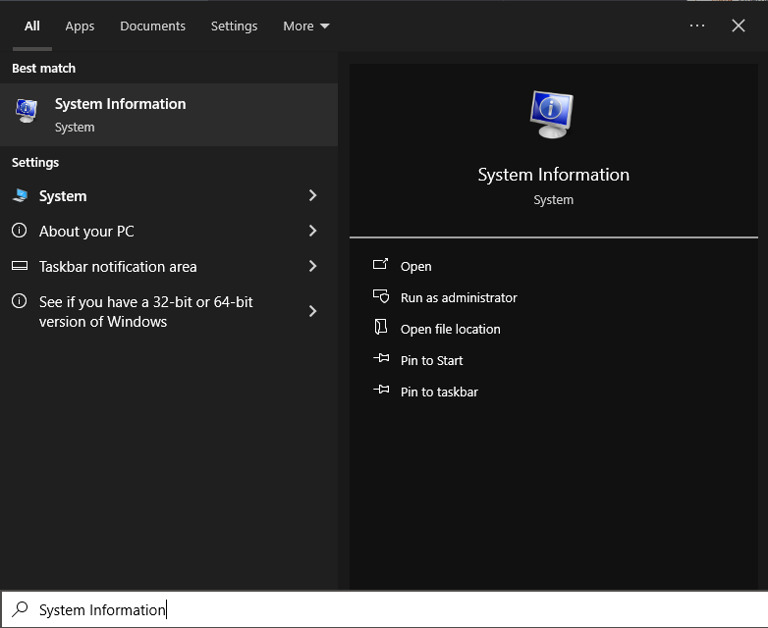
- Open the Windows search bar and type "System Information".
- Open the System Information application.
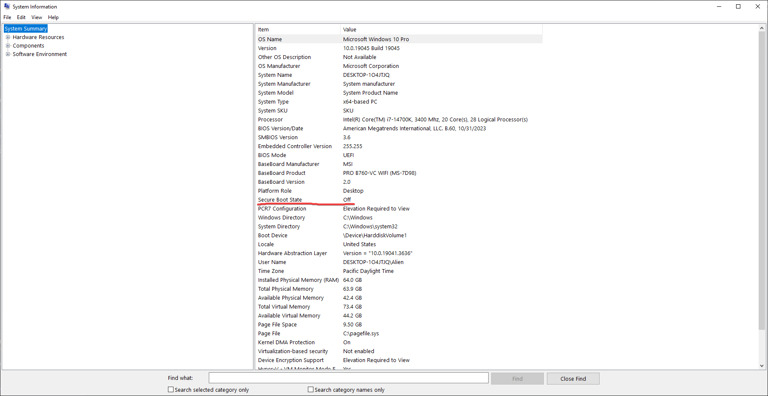
- Look for the field labelled Secure Boot State:
✅ Verifying Secure Boot State
If Secure Boot State shows as Enabled, you will need to disable it through your BIOS.
🛠️ Disabling Secure Boot in BIOS
- Restart your PC and enter the BIOS setup:
- Common keys to access BIOS include Del, F2, or Esc (varies by manufacturer).
- Locate the Secure Boot option in your BIOS menu.
- Disable Secure Boot.
- Save changes and exit the BIOS.
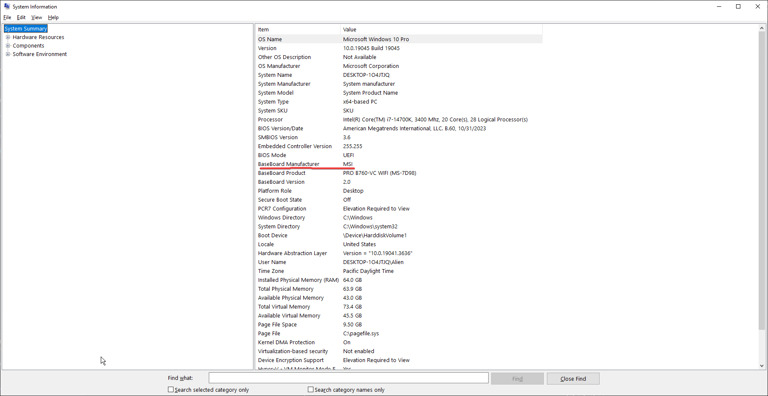
- Every motherboard is different. To find specific instructions for your system:
- Look for your BaseBoard Manufacturer in System Information.
- Search online for "How to disable Secure Boot on [your motherboard model]"
Still need help?
Open a support ticket and include your order details, a screenshot, and the exact issue.
Open support